How to Animate Pixel Art (The Right Way)
Animation is easier than it looks. Sprites are small, so two to four frames are often enough. We'll go through the PixelZ timeline, a first idle loop, a walk cycle, and GIF export. At the end, how AI can draw a first pass for you to fix.
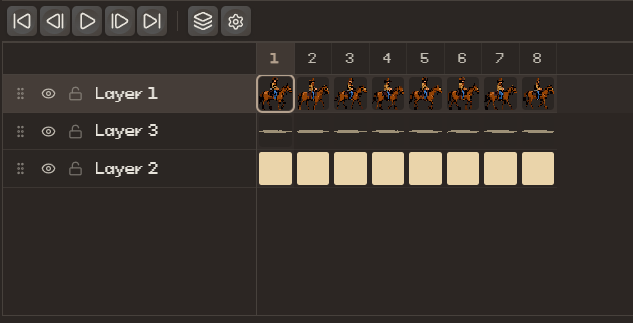
Meet the timeline
The timeline is at the bottom of the editor. Layers are rows on the left, frames are columns across the top. Right-click a frame for New Frame (copies the current frame), New Empty Frame, and Delete Frame. Play in the bar above the timeline loops the animation. , and . step one frame back and forward, same as in Aseprite. Shift+< and Shift+> move a frame left or right.
Fewer frames, bigger changes
Beginners add lots of frames with tiny changes. The loop ends up blurry and slow. Pixel animation looks better with fewer frames and clear changes between them. The eye fills in the rest. Two to six frames are enough for most idles, blinks, flames, and water. A long animation is just short loops one after another.
Start with a two-frame idle
A good first animation. Finish a sprite. Right-click its frame and choose New Frame to copy it. In the copy, select the chest with Selection [M] and press the up arrow once. Play it on a loop and the one-pixel shift looks like breathing. Two frames, and you've used the whole workflow.

Onion skinning: see between the frames
Turn on onion skin in the timeline's top bar. Its settings control mode, position, opacity, and opacity step. You'll see faded copies of the previous and next frames behind the one you're drawing, so you see the motion instead of guessing it. You need it for anything that travels, like a walk or a jump.
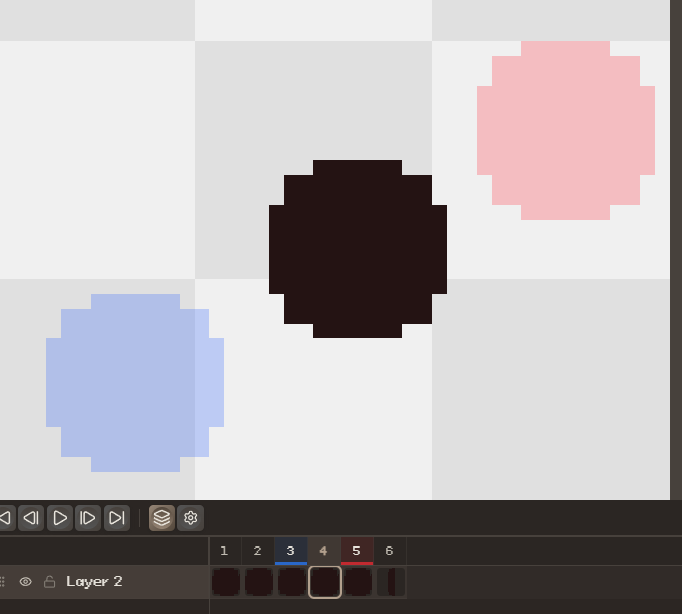
Put the moving parts on their own layer, away from the background. Then you can change them without touching anything else.
A four-frame walk cycle
- 1
Frame 1: contact
Both feet on the ground, legs apart. This is the clearest pose of the cycle.
- 2
Frame 2: passing
One leg straight under the body, the other lifting. Move the whole body up one pixel.
- 3
Frames 3–4: mirror
Copy frames 1 and 2 (right-click > New Frame) and swap the legs. Four frames make one full cycle.
- 4
Preview and polish
Play it with onion skin on. Fix any pixel that jumps or slides until the feet stay planted.
Let AI rough it in
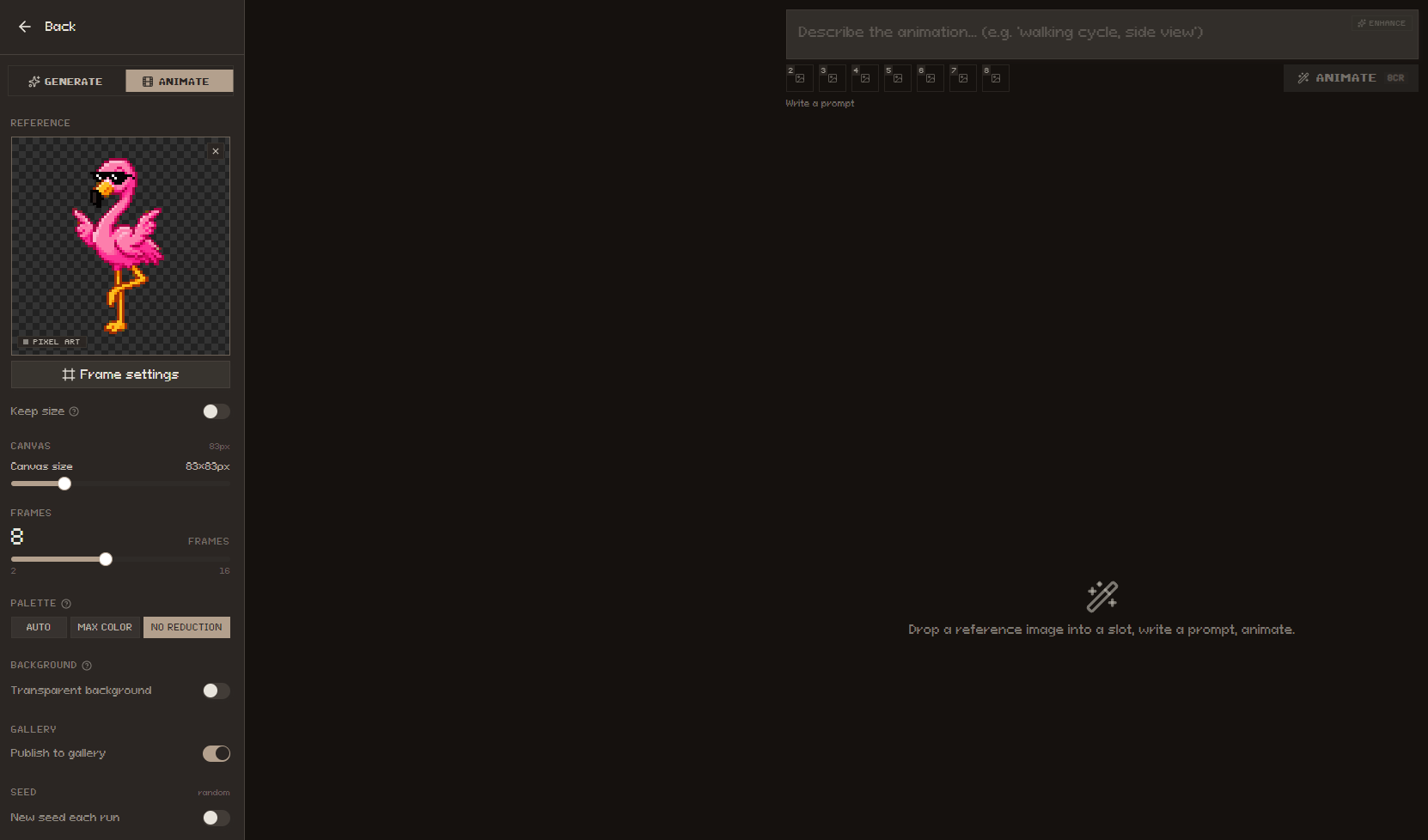
Drawing every frame by hand is slow. The Animate page makes the motion from one sprite. Drop in a reference image and describe the motion. The free Enhance button improves the prompt. Set Frames (2–16) and click Animate. When the result is close, click Open in editor. The frames land on a normal timeline, and you fix the rest by hand.
Export a clean GIF
When the loop looks right, use File > Export > Export As… and choose GIF. Transparency is kept. For a game engine, export a sprite sheet instead (File > Export > Export Sprite Sheet, with Aseprite-format JSON) or numbered PNGs. The engine handles the timing.
Put it into practice
Everything in this guide works in the free PixelZ editor — no install, no credit card.