How to Make Your First Pixel Art
Pixel art looks simple. A few colored squares. But with so few pixels, every one counts. You spend less time drawing and more time deciding where each pixel goes. The good news: you can finish your first sprite in one evening. We'll go from a blank canvas to a finished sprite. Then the basics that make pixel art look clean: resolution, lines, jaggies, and curves.
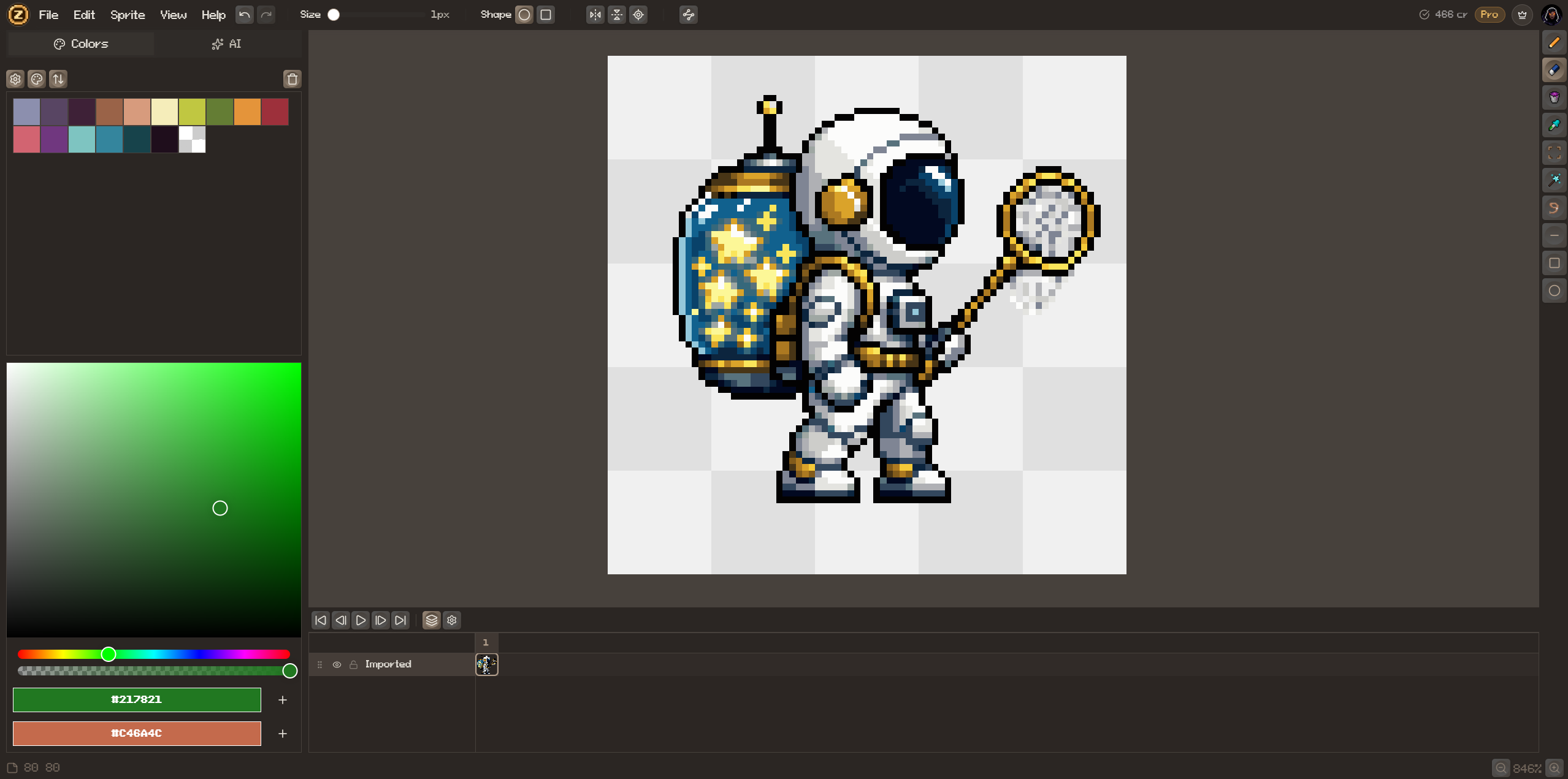
1. Resolution: start small
Start at 32×32. That's enough for a game character. A bigger canvas looks easier, but you end up with empty pixels and no idea what to fill them with. Open File > New Project and pick the 32×32 preset. 16×16 and 64×64 are one click away; the maximum is 1024×1024. Old console sprites were 16×16 and 32×32. The small size is a big part of the pixel art look.
Go bigger only when the subject needs it: a boss, a logo, a detailed item. Never resample a small sprite to make it larger. Export at 2×, 3× or 4× instead, and the pixels stay sharp.
2. Limit your palette
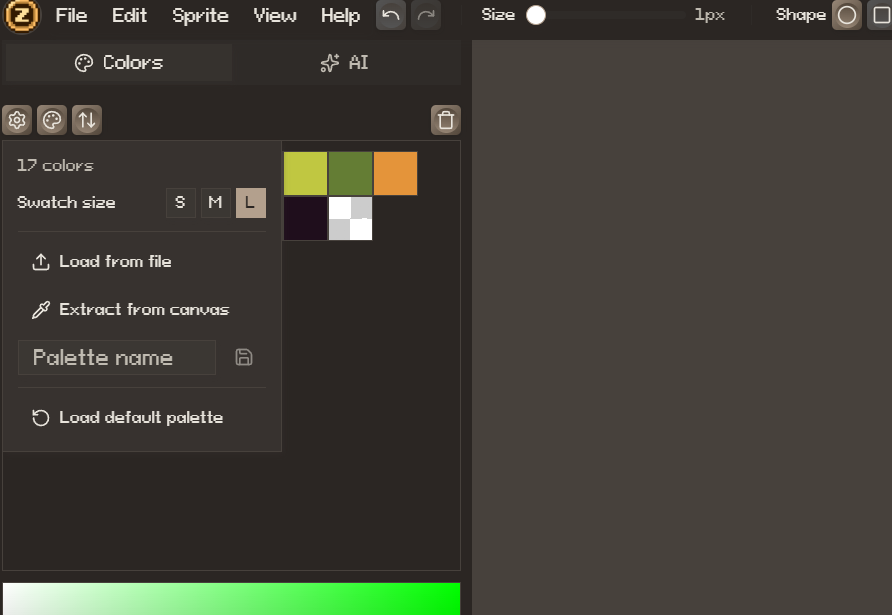
Start with 4 to 8 colors. In the Colors panel you can keep the default palette, load one from a file (.hex, .gpl, or any image), or click Extract from canvas to take the colors from art you already have. Pick one base color per material. Add a darker and a lighter shade of each. Three shades are enough to make a shape look solid.
3. The four tools you need
Four tools do most of the work. Pencil [B] places pixels. Eraser [E] removes them. Bucket [G] fills an area. Eyedropper [I] picks a color from the canvas. With the Pencil, hold Alt to pick a color without switching tools. Selection [M], Lasso [Q] and Magic Wand [W] come later, for moving and copying. Every tool has a one-key shortcut. Use the shortcuts from day one.
4. Silhouette first, details last
Draw the whole subject as one flat shape first. No details yet. If you can tell what it is from the shape alone (a knight, a tree, a sword), the sprite will work. Squint at the canvas. What you still see is what a player sees. For symmetric subjects, turn on Mirror X in the tool options. Draw one half and you get both.
5. Lines and pixel ratios
A pixel line is made of straight runs of pixels. Each run steps sideways as the line goes up or down. The ratio says how many pixels across for each step down. 1:0 is a horizontal line. 0:1 is a vertical line. 1:1 is a 45° diagonal: one across, one down. 2:1 is a shallow slope: two across, one down (2, 2, 2, 2). 1:2 is steep: one across, two down. A clean line keeps every run the same length. 2, 2, 2, 2 is clean. 2, 3, 1, 2 is not.
6. Jaggies and doubles
A jaggy is a run that's longer or shorter than its neighbors: 2, 3, 1 instead of 2, 2, 2. The eye sees a bump on an edge that should be straight. It's easier to see than to describe:

A double is a single pixel that sticks out one step past the run. You'll find them on curves and where two lines meet at a corner. One stray pixel is enough to make an edge look rough:

Jaggies and doubles are the most common reason pixel art looks amateur. Zoom in, follow each edge, and even out the runs.
Do a cleanup pass on every sprite. Go along each outline at high zoom and delete stray pixels and doubles. It's boring, but it's what makes a sprite look finished.
7. Curves
A curve is a line whose runs change length in order. A smooth quarter-circle goes something like 5, 3, 2, 1, 1: long runs first, shorter ones as it turns. The runs should shrink or grow steadily. 5, 1, 4, 2 looks lumpy. When a curve looks wrong, usually one run is out of order. Fix that run and the curve is smooth again.
8. Outlines and shading
Most pixel art has a dark outline. Pure black gives a bold retro look. A darker shade of the fill color looks softer. For shading, choose one light direction and stick to it. Top-left is the usual choice. Surfaces facing the light get the light shade. Surfaces facing away get the dark shade. Avoid pillow shading, where you shade in even rings around the outline. It makes everything look puffy and flat.
Your first sprite, step by step
- 1
Create a 32×32 project
File > New Project, click the 32×32 preset, name it, and click New Project.
- 2
Block the silhouette
With Pencil [B], draw the whole shape in one mid-tone color. Squint and adjust until you can tell what it is.
- 3
Add the outline
Trace the shape in a dark color with even steps. Ctrl+Z undoes up to 100 steps.
- 4
Fill and shade
Fill the base colors with Bucket [G]. Add the light shade on top and the dark shade underneath.
- 5
Clean up
Zoom in. Delete stray pixels and doubles on the curves.
- 6
Export
File > Export > Export As… (Ctrl+Shift+E) and choose PNG. Transparency is kept.
Where to go next
Once still sprites feel easy, try animation. The timeline is already at the bottom of the editor. Or try AI: generate a base and fix it by hand. Both work in the same project. The animation and AI guides start where this one ends.
Put it into practice
Everything in this guide works in the free PixelZ editor — no install, no credit card.